Ok, I was quite annoyed when I could not bind to an ObservableCollection
I was sad that this does’t exist by default, so I created one. This is actually a UserControl that hosts a ListBox, but it works just like a ListBox. I can add to and delete from a bound ObservableCollection
I wanted it to support pressing delete. Right-clicking and choosing delete. Typing in a new item at the bottom and clicking Add. Or click enter after typing.
I wanted it to work with List
<UserControl x:Class="AddRemoveStringList.StringListBox"
xmlns="http://schemas.microsoft.com/winfx/2006/xaml/presentation"
xmlns:x="http://schemas.microsoft.com/winfx/2006/xaml"
xmlns:mc="http://schemas.openxmlformats.org/markup-compatibility/2006"
xmlns:d="http://schemas.microsoft.com/expression/blend/2008"
mc:Ignorable="d"
d:DesignHeight="300" d:DesignWidth="300">
<Grid>
<Grid.ColumnDefinitions>
<ColumnDefinition Width="*" />
<ColumnDefinition Width="Auto" />
</Grid.ColumnDefinitions>
<Grid.RowDefinitions>
<RowDefinition Height="Auto" />
<RowDefinition Height="*" />
<RowDefinition Height="Auto" />
</Grid.RowDefinitions>
<Label Name="TitleLabel" Content="{Binding Title}" Grid.ColumnSpan="2"/>
<ListBox x:Name="Box" Grid.Row="1" Grid.ColumnSpan="2" KeyDown="OnDeletePressed" ItemsSource="{Binding ItemsSource}">
<ListBox.Resources>
<ContextMenu x:Key="ContextMenuDelete">
<MenuItem Header="_Delete" Click="MenuDeleteClicked" />
</ContextMenu>
</ListBox.Resources>
<ListBox.ItemContainerStyle>
<Style TargetType="{x:Type ListBoxItem}" BasedOn="{StaticResource {x:Type ListBoxItem}}">
<Setter Property="ContextMenu" Value="{DynamicResource ContextMenuDelete }">
</Setter>
</Style>
</ListBox.ItemContainerStyle>
</ListBox>
<TextBox Name="AddStringBox" Grid.Row="2" KeyDown="OnEnterPressed" />
<Button Name="AddStringButton" Content="Add" Grid.Row="2" Grid.Column="1" Click="AddClicked" MinWidth="30" />
</Grid>
</UserControl>
using System.Collections.Generic;
using System.Collections.Specialized;
using System.Windows;
using System.Windows.Controls;
using System.Windows.Input;
namespace AddRemoveStringList
{
/// <summary>
/// Interaction logic for StringListBox.xaml
/// </summary>
public partial class StringListBox : UserControl
{
public StringListBox()
{
InitializeComponent();
Box.DataContext = this;
TitleLabel.DataContext = this;
}
#region Events
private void AddClicked(object sender, RoutedEventArgs e)
{
ItemsSource.Add(AddStringBox.Text);
AddStringBox.Clear();
object o = this.DataContext;
if (!(o is INotifyCollectionChanged))
{
this.DataContext = null;
this.DataContext = o;
}
}
private void MenuDeleteClicked(object sender, RoutedEventArgs e)
{
ItemsSource.Remove(Box.SelectedItem.ToString());
}
private void OnDeletePressed(object sender, KeyEventArgs e)
{
if (e.Key == Key.Delete)
{
MenuDeleteClicked(sender, e);
}
}
private void OnEnterPressed(object sender, KeyEventArgs e)
{
if (e.Key == Key.Enter)
{
AddClicked(this, e);
}
}
#endregion
#region ItemsSource DependencyProperty
public ICollection<string> ItemsSource
{
get { return (ICollection<string>)GetValue(ItemsSourceProperty); }
set { SetValue(ItemsSourceProperty, value); }
}
public static readonly DependencyProperty ItemsSourceProperty =
DependencyProperty.Register("ItemsSource", typeof(ICollection<string>), typeof(StringListBox), null);
#endregion
#region Title DependencyProperty
public string Title
{
get { return (string)GetValue(TitleProperty); }
set { SetValue(TitleProperty, value); }
}
public static readonly DependencyProperty TitleProperty =
DependencyProperty.Register("TitleProperty", typeof(string), typeof(StringListBox), null);
#endregion
}
}
And here is how you use it just like you would a ListBox.
<Window x:Class="AddRemoveStringList.MainWindow"
xmlns="http://schemas.microsoft.com/winfx/2006/xaml/presentation"
xmlns:x="http://schemas.microsoft.com/winfx/2006/xaml"
xmlns:loc="clr-namespace:AddRemoveStringList"
Title="MainWindow" Height="350" Width="525"
>
<Grid>
<Grid.RowDefinitions>
<RowDefinition Height="*"/>
</Grid.RowDefinitions>
<loc:StringListBox x:Name="ListViewStringList1" ItemsSource="{Binding StringList1}" />
<ListBox x:Name="ListViewStringList2" ItemsSource="{Binding StringList2}" Grid.Row="1" />
</Grid>
</Window>
For those who wonder why I used code-behind and question if this is breaking MVVM, it is not. I am creating a reusable control here. When creating a control, the goal is to have everything in one object. Everything in the code behind is related to the UI code or uses an interface. You can use this and bind to it in MVVM just like you would a ListBox.
I keep hearing in the community that Silverlight and WPF are dead. Why? Well, I think this is because Microsoft is moving to HTML5, CSS, and JavaScript for web apps and is providing that as an option for Windows 8 Metro apps. Because of this, Microsoft may have stopped development on Silverlight.
How does Silverlight affect WPF? It doesn’t! WPF is not a tool for writing web apps. There is a common misconception that the life span of Silverlight and WPF are tied together and if one dies, so does the other. This is far from accurate.
Sure, Silverlight and WPF have similarities. Here are some:
Let’s look at the differences between WPF and Silverlight. It is in these differences that it becomes obvious that WPF is just beginning a long life as an amazing API for writing rich interfaces.
WPF (Windows Presentation Foundation)
Silverlight
So as you see their purposes are quite different and the life of WPF is not tied to Silverlight.
Let’s look at when the support for each stops.
Silverlight is listed on Microsoft’s site as being supported until 2021. This means that you probably should be concerned right now. There is a question as to whether Silverlight 6 will be released. For these reasons, people are thinking that Silverlight has an end of life in site.
Sometimes a product is so popular it lives on, sometimes it just goes away. While Silverlight became popular, it didn’t become popular enough. The effort to make it work on all the different platforms was too hard and never completed. By the time such an effort were to succeed, HTML5 will already be out there and working on every platform. The mistake Microsoft made was not making Silverlight a free open source solution. If they had, its adoption would have been far greater. It would likely work on every platform already, and it would have succeeded to replace Flash by 2010 and would be a viable option for those who don’t think HTML5 will be the solution everyone hopes. However, this did not happen. By 2021, Silverlight may just go away.
WPF’s life is tied to the life of Windows. See this quote:
Beginning with .NET 3.5 SP1, the .NET Framework is considered a Component of the Windows OS. Components follow the Support Lifecycle policy of their parent product or platform.[1]
So that statement alone should make you feel good about the life of WPF. WPF is a permanent part of the .NET Framework and will last as long as the Windows version it is released with. Windows 8 is supported until 2023 so WPF is supported at least until 2023 too. That is two years longer than Silverlight. However, does anyone believe that the next windows versions will not include .NET Framework? I expect .NET Framework to be a primary part of Windows releases for the next decade or more.
I expect that the version of Windows that releases after 2020 will have .NET Framework and WPF will be included.
WPF is also providing windows application developers with stable frameworks, such as MVP and MVVM, for enterprises to build their software. Companies are still moving to WPF and they still should be because Microsoft is moving to WPF.
If you are just deciding on a solution for a Windows application’s user interface, you should choose WPF.
If you are making product road map decisions and you are looking ahead a five years or even a decade and you want to know what user interface to use, you should use WPF.
WPF has just begun what is going to be a long life that could span decades. It should be your primary choice for feature rich desktop applications. Visual Studio 2012 and other new and recent applications will use WPF and many future versions of software will run WPF.
If you are just deciding on a solution for a web application’s user interface today, you wouldn’t go wrong choosing Silverlight. You can use it for now. Let’s face it. HTML5 isn’t here yet. It is still “coming” and how long will it continue to be “coming” before it gets here?
If you are making product road map decisions and you are looking ahead a five years or even a decade and you want to know what user interface to use, you should probably not choose Silverlight or at least have an option that if Silverlight 6 is not released to go with another option, such as HTML5-CSS-JS.
Silverlight is having a mid-life crisis and yes it may die when support ends in 2021. Silverlight attempted to solve the limitations with web applications. However, while it didn’t fall short in features, it fell short in not being cross-platform. HTML5 will replace Flash, not Silverlight. And yet Silverlight is still useful today in 2012 and will probably still be useful for years. It will live for almost a decade and is still a good solution to choose until HTML5 becomes mainstream and fully supported in every browser. If Microsoft released Silverlight 6 and extends its support (which many think will not happen) then it Silverlight will remain a positive choice for writing rapid business applications.
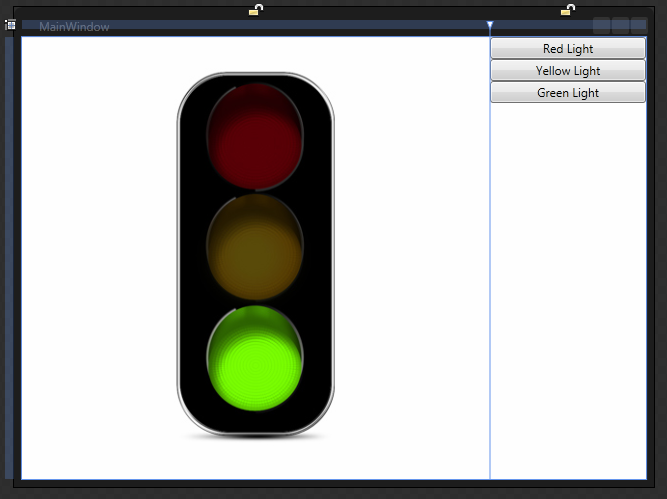
For this example, lets think of a stop light during the traffic of your morning commute. There will be three images of a stop light. Each image will have either the red, yellow, or green light on.
Link: I used traffic light images from here: http://www.psdgraphics.com/psd-icons/traffic-lights-icon-psd
*** This can be done 100% in Expression Blend without using any code at all. ***
Note: This is for both Developers and Designers. It is for designers because they can do all of this without code. It is for Developers because they need to know to not go reinvent the wheel and spend their time writing code to do this.
You can do this in either Visual Studio or Expression Blend. For this example, we will use Expression Blend 4.
We are going to have a simple view for this example with the images on the left and buttons on the right.
Your Xaml should look like this:
<Window xmlns="http://schemas.microsoft.com/winfx/2006/xaml/presentation" xmlns:x="http://schemas.microsoft.com/winfx/2006/xaml" x:Class="SwitchImagesWithVisualStates.MainWindow" x:Name="Window" Title="MainWindow" Width="640" Height="480"> <Grid x:Name="LayoutRoot"> <Grid.ColumnDefinitions> <ColumnDefinition Width="3*"/> <ColumnDefinition Width="1*"/> </Grid.ColumnDefinitions> <Image Name="ImageRedLight" Source="Images/Red.png" /> <Image Name="ImageYellowLight" Source="Images/Yellow.png" /> <Image Name="ImageGreenLight" Source="Images/Green.png" /> <StackPanel Grid.Column="1"> <Button Name="ButtonRedLight" Content="Red Light"/> <Button Name="ButtonYellowLight" Content="Yellow Light"/> <Button Name="ButtonGreenLight" Content="Green Light"/> </StackPanel> </Grid> </Window>
That is it. You have now written an application that switches the image.
Here is your final Xaml.
<Window
xmlns="http://schemas.microsoft.com/winfx/2006/xaml/presentation"
xmlns:x="http://schemas.microsoft.com/winfx/2006/xaml"
xmlns:i="http://schemas.microsoft.com/expression/2010/interactivity"
xmlns:ei="http://schemas.microsoft.com/expression/2010/interactions"
x:Class="SwitchImagesWithVisualStates.MainWindow"
x:Name="Window"
Title="MainWindow"
Width="640" Height="480">
<Grid x:Name="LayoutRoot">
<VisualStateManager.VisualStateGroups>
<VisualStateGroup x:Name="VisualStateGroupTrafficLights">
<VisualState x:Name="VisualStateRedLight">
<Storyboard>
<ObjectAnimationUsingKeyFrames Storyboard.TargetProperty="(UIElement.Visibility)" Storyboard.TargetName="ImageYellowLight">
<DiscreteObjectKeyFrame KeyTime="0" Value="{x:Static Visibility.Hidden}"/>
</ObjectAnimationUsingKeyFrames>
<ObjectAnimationUsingKeyFrames Storyboard.TargetProperty="(UIElement.Visibility)" Storyboard.TargetName="ImageGreenLight">
<DiscreteObjectKeyFrame KeyTime="0" Value="{x:Static Visibility.Hidden}"/>
</ObjectAnimationUsingKeyFrames>
</Storyboard>
</VisualState>
<VisualState x:Name="VisualStateYellowLight">
<Storyboard>
<ObjectAnimationUsingKeyFrames Storyboard.TargetProperty="(UIElement.Visibility)" Storyboard.TargetName="ImageRedLight">
<DiscreteObjectKeyFrame KeyTime="0" Value="{x:Static Visibility.Hidden}"/>
</ObjectAnimationUsingKeyFrames>
<ObjectAnimationUsingKeyFrames Storyboard.TargetProperty="(UIElement.Visibility)" Storyboard.TargetName="ImageGreenLight">
<DiscreteObjectKeyFrame KeyTime="0" Value="{x:Static Visibility.Hidden}"/>
</ObjectAnimationUsingKeyFrames>
</Storyboard>
</VisualState>
<VisualState x:Name="VisualStateGreenLight">
<Storyboard>
<ObjectAnimationUsingKeyFrames Storyboard.TargetProperty="(UIElement.Visibility)" Storyboard.TargetName="ImageRedLight">
<DiscreteObjectKeyFrame KeyTime="0" Value="{x:Static Visibility.Hidden}"/>
</ObjectAnimationUsingKeyFrames>
<ObjectAnimationUsingKeyFrames Storyboard.TargetProperty="(UIElement.Visibility)" Storyboard.TargetName="ImageYellowLight">
<DiscreteObjectKeyFrame KeyTime="0" Value="{x:Static Visibility.Hidden}"/>
</ObjectAnimationUsingKeyFrames>
</Storyboard>
</VisualState>
</VisualStateGroup>
</VisualStateManager.VisualStateGroups>
<Grid.ColumnDefinitions>
<ColumnDefinition Width="3*"/>
<ColumnDefinition Width="1*"/>
</Grid.ColumnDefinitions>
<Image x:Name="ImageRedLight" Source="Images/Red.png" />
<Image x:Name="ImageYellowLight" Source="Images/Yellow.png" />
<Image x:Name="ImageGreenLight" Source="Images/Green.png" />
<StackPanel Grid.Column="1">
<Button x:Name="ButtonRedLight" Content="Red Light">
<i:Interaction.Triggers>
<i:EventTrigger EventName="Click">
<ei:GoToStateAction x:Name="GoToRedLightState" StateName="VisualStateRedLight"/>
</i:EventTrigger>
</i:Interaction.Triggers>
</Button>
<Button x:Name="ButtonYellowLight" Content="Yellow Light">
<i:Interaction.Triggers>
<i:EventTrigger EventName="Click">
<ei:GoToStateAction x:Name="GoToYellowLightState" StateName="VisualStateYellowLight"/>
</i:EventTrigger>
</i:Interaction.Triggers>
</Button>
<Button x:Name="ButtonGreenLight" Content="Green Light">
<i:Interaction.Triggers>
<i:EventTrigger EventName="Click">
<ei:GoToStateAction x:Name="GoToGreenLightState" StateName="VisualStateGreenLight"/>
</i:EventTrigger>
</i:Interaction.Triggers>
</Button>
</StackPanel>
</Grid>
</Window>
Notice there are additional dependencies added that come from System.Windows.Interactivity.dll:
Mli>xmlns:ei=”http://schemas.microsoft.com/expression/2010/interactions”
There is a lot more to learn. We didn’t even touch Transition or Easing methods. We didn’t discuss how to hook this up into a full application, or possible an MVVM application.
Here is a rudimentary example of how to load a ResourceDictionary.xaml file and then how to change it and save the changes.
<ResourceDictionary xmlns="http://schemas.microsoft.com/winfx/2006/xaml/presentation"
xmlns:x="http://schemas.microsoft.com/winfx/2006/xaml"
xmlns:sys="clr-namespace:System;assembly=mscorlib">
<sys:String x:Key="HW">Hello, World</sys:String>
</ResourceDictionary>
using System;
using System.IO;
using System.Windows;
using System.Windows.Markup;
namespace ReadAndWriteToXaml
{
/// <summary>
/// Interaction logic for App.xaml
/// </summary>
public partial class App : Application
{
public static ResourceDictionary Dictionary;
public static String XamlFileName = "Dictionary1.xaml";
public App()
{
LoadStyleDictionaryFromFile(XamlFileName);
}
/// <summary>
/// This funtion loads a ResourceDictionary from a file at runtime
/// </summary>
public void LoadStyleDictionaryFromFile(string inFileName)
{
if (File.Exists(inFileName))
{
try
{
using (var fs = new FileStream(inFileName, FileMode.Open, FileAccess.Read, FileShare.Read))
{
// Read in ResourceDictionary File
Dictionary = (ResourceDictionary)XamlReader.Load(fs);
// Clear any previous dictionaries loaded
Resources.MergedDictionaries.Clear();
// Add in newly loaded Resource Dictionary
Resources.MergedDictionaries.Add(Dictionary);
}
}
catch
{
// Do something here if file not found
}
}
}
private void Application_Exit_1(object sender, ExitEventArgs e)
{
try
{
Dictionary["HW"] += "Hello, back!";
StreamWriter writer = new StreamWriter(XamlFileName);
XamlWriter.Save(Dictionary, writer);
}
catch
{
// Do something here if file not found
}
}
}
}
Note: Unfortunately you cannot use two way mode when binding to DynamicResource objects, so editing the xaml file is made a bit more complex. But hopefully, this will help you get started.
Using Aspect Oriented Programming, specifically PostSharp, they have implemented INotifyPropertyChanged in two ways:
I recommend you look at both of those methods and see if they meet your needs. Of they do use them.
I didn’t find either implementation to my liking. The first is too simple, and the second is too complex. Both seem to think that I am going to want all my properties to kick off the OnPropertyChanged event. They both implement the class as follows.
[NotifyPropertyChanged]
public class Person
{
public int Id { get; set; }
public string FirstName { get; set; }
public string LastName { get; set; }
}
All three properties will implement INotifyPropertyChanged even though it may be that Id never changes or if it does change, there is no need to notify anything.
Here is how I want to use Aspect Oriented Programming in my MVVM objects.
// This adds the interface and the OnNotifyPropertyChanged method.
[NotifyPropertyChangedClass]
public class Person
{
// Does NOT call OnNotifyPropertyChanged
public int Id { get; set; }
// Calls OnNotifyPropertyChanged
[NotifyPropertyChanged]
public string FirstName { get; set; }
// Calls OnNotifyPropertyChanged
[NotifyPropertyChanged]
public string LastName { get; set; }
}
Now, I also want to be able to specify the notifying of a property changed:
[NotifyPropertyChangedClass]
public class Person
{
// Does NOT call OnNotifyPropertyChanged
public int Id { get; set; }
// Calls OnNotifyPropertyChanged for the property and the string params passed in.
[NotifyPropertyChanged("LastCommaFirst", "FirstLast")]
public string FirstName { get; set; }
// Calls OnNotifyPropertyChanged
[NotifyPropertyChanged]
public string LastName { get; set; }
public string LastCommaFirst
{
get { return string.Format("{1}, {0}", FirstName, LastName); }
}
public string FirstLast
{
get { return string.Format("{1}, {0}", FirstName, LastName); }
}
}
I was able to implement this with three very simple files: 1 interface, and two aspects. Here is how I implemented this:
The first file, INotifyPropertyChangedWithMethod.cs, is an interface that inherits from INotifyPropertyChanged. I used this to get access to the OnPropertyChanged event method.
using System.ComponentModel;
namespace MVVM
{
public interface INotifyPropertyChangedWithMethod : INotifyPropertyChanged
{
void OnPropertyChanged(string propertyName);
}
}
The second object is basically the same as the simple single INotifyPropertyChanged aspect, except it only implements the interface and does nothing to the setters.
using System;
using System.ComponentModel;
using PostSharp.Aspects;
using PostSharp.Aspects.Advices;
using PostSharp.Extensibility;
using PostSharp.Reflection;
namespace MVVM
{
[Serializable]
[IntroduceInterface(typeof(INotifyPropertyChangedWithMethod), OverrideAction = InterfaceOverrideAction.Ignore)]
[MulticastAttributeUsage(MulticastTargets.Class, Inheritance = MulticastInheritance.Strict)]
public sealed class NotifyPropertyChangedClassAttribute : InstanceLevelAspect, INotifyPropertyChangedWithMethod
{
[ImportMember("OnPropertyChanged", IsRequired = false, Order = ImportMemberOrder.AfterIntroductions)]
public Action OnPropertyChangedMethod;
[IntroduceMember(Visibility = Visibility.Family, IsVirtual = true, OverrideAction = MemberOverrideAction.Ignore)]
public void OnPropertyChanged(string propertyName)
{
if (this.PropertyChanged != null)
{
PropertyChanged(Instance, new PropertyChangedEventArgs(propertyName));
}
}
[IntroduceMember(OverrideAction = MemberOverrideAction.Ignore)]
public event PropertyChangedEventHandler PropertyChanged;
}
}
The final aspect is one that I use on the properties.
using System;
using PostSharp.Aspects;
namespace MVVM
{
[Serializable]
public class NotifyPropertyChanged : LocationInterceptionAspect
{
public NotifyPropertyChanged()
: this(true, null)
{
}
public NotifyPropertyChanged(params string[] inProperty)
: this(true, inProperty)
{
}
public NotifyPropertyChanged(bool inNotifyCurrentProperty, params string[] inProperty)
{
_NotifyCurrentProperty = inNotifyCurrentProperty;
_OtherProperties = inProperty;
}
private readonly string[] _OtherProperties;
private readonly bool _NotifyCurrentProperty;
public override void OnSetValue(LocationInterceptionArgs args)
{
// Do nothing if the property value doesn't change
if (args.Value == args.GetCurrentValue())
return;
args.ProceedSetValue();
var npc = args.Instance as INotifyPropertyChangedWithMethod;
if (npc != null)
{
// Notify for current property
if (_NotifyCurrentProperty)
npc.OnPropertyChanged(args.Location.PropertyInfo.Name);
// Notify for other properties
if (_OtherProperties != null)
{
foreach (string otherProperty in _OtherProperties)
{
npc.OnPropertyChanged(otherProperty);
}
}
}
}
}
}
My MVVM objects still include RelayCommand, but they no longer need ObservableObject or ViewModelBase.
First, since the classes themselves don’t actually have code for INotifyPropertyChanged or the OnPropertyChanged method, what do you do if you need to actually call OnPropertyChanged in one of the classes methods instead of in a property? What if you need to add an method to the PropertyChanged event? Visual Studio is going to give compile errors? Both are easily doable using the interface.
private void SomeMethod(object sender)
{
var npc = this as INotifyPropertyChangedWithMethod;
if (npc != null)
npc.OnPropertyChanged("Sentences");
}
private void Instance_SearchWordsChangedEvent(object sender)
{
var npc = MyObject as INotifyPropertyChangedWithMethod;
if (npc != null)
npc.PropertyChanged += NpcOnPropertyChanged;
}
private void NpcOnPropertyChanged(object sender, PropertyChangedEventArgs propertyChangedEventArgs)
{
// code here...
}
Here is a sample project and a project template and also a separate AspectMVVM project if you want the code. I’ll open source it on CodePlex.com soon.
AspectMVVM Example Project.zip
AspectMVVM Project Template.zip
AspectMVVM.zip
Today I decided to write how to display images from a folder with details using WPF.
What is my motivation? This StackOverflow post:
http://stackoverflow.com/questions/13034911/create-control-instance-in-wpf
Here is my full example project: ImageList.zip
The first thing I did was create a new WPF Project in Visual Studio. After that I followed these steps.
The Model.
using System;
using System.Collections.Generic;
using System.Linq;
using System.Text;
using System.Threading.Tasks;
namespace ImageList.Model
{
public class ImageDetails
{
/// <summary>
/// A name for the image, not the file name.
/// </summary>
public string Name { get; set; }
/// <summary>
/// A description for the image.
/// </summary>
public string Description { get; set; }
/// <summary>
/// Full path such as c:\path\to\image.png
/// </summary>
public string Path { get; set; }
/// <summary>
/// The image file name such as image.png
/// </summary>
public string FileName { get; set; }
/// <summary>
/// The file name extension: bmp, gif, jpg, png, tiff, etc...
/// </summary>
public string Extension { get; set; }
/// <summary>
/// The image height
/// </summary>
public int Height { get; set; }
/// <summary>
/// The image width.
/// </summary>
public int Width { get; set; }
/// <summary>
/// The file size of the image.
/// </summary>
public long Size { get; set; }
}
}
The XAML. Basically it is an ItemsControl with an ItemsTemplate and all the complexity and binding is in the ItemsTemplate.
<Window x:Class="ImageList.MainWindow"
xmlns="http://schemas.microsoft.com/winfx/2006/xaml/presentation"
xmlns:x="http://schemas.microsoft.com/winfx/2006/xaml"
Title="MainWindow" Height="350" Width="525" Loaded="Window_Loaded_1">
<Grid>
<ItemsControl Name="ImageList" ItemsSource="{Binding ImageList}">
<ItemsControl.ItemTemplate>
<DataTemplate>
<Border BorderThickness="1" BorderBrush="#FFD0D1D7" Padding="5" Margin="10,10,0,0">
<StackPanel Orientation="Horizontal">
<!--image and dimensions-->
<Grid Width="88" Height="55">
<Image Source="{Binding Path}"/>
<TextBlock Background="#B2000000" Foreground="White" Height="16" TextAlignment="Center" VerticalAlignment="Bottom">
<TextBlock.Text>
<MultiBinding StringFormat="{}{0}x{1}">
<Binding Path="Height"/>
<Binding Path="Width"/>
</MultiBinding>
</TextBlock.Text>
</TextBlock>
</Grid>
<!--name, type and size-->
<StackPanel Orientation="Vertical" Margin="5,0,0,0" VerticalAlignment="Center">
<TextBlock Name="ImageName" Margin="1" Foreground="#FF787878" Text="{Binding FileName}"/>
<TextBlock Name="ImageType" Margin="1" Foreground="#FF787878">
<TextBlock.Text>
<MultiBinding StringFormat="Type: {0}">
<Binding Path="Extension"/>
</MultiBinding>
</TextBlock.Text>
</TextBlock>
<TextBlock Name="ImageSize" Margin="1" Foreground="#FF787878">
<TextBlock.Text>
<MultiBinding StringFormat="Size: {0} Bytes">
<Binding Path="Size"/>
</MultiBinding>
</TextBlock.Text>
</TextBlock>
</StackPanel>
</StackPanel>
</Border>
</DataTemplate>
</ItemsControl.ItemTemplate>
</ItemsControl>
</Grid>
</Window>
The Code behind. Feel free to switch this to use MVVM if needed. I didn’t use MVVM only because this is an example only.
using ImageList.Model;
using System;
using System.Collections.Generic;
using System.IO;
using System.Linq;
using System.Windows;
using System.Windows.Media;
using System.Windows.Media.Imaging;
namespace ImageList
{
/// <summary>
/// Interaction logic for MainWindow.xaml
/// </summary>
public partial class MainWindow : Window
{
public MainWindow()
{
InitializeComponent();
}
private void Window_Loaded_1(object sender, RoutedEventArgs e)
{
string root = System.IO.Path.GetDirectoryName(System.Reflection.Assembly.GetExecutingAssembly().Location);
string[] supportedExtensions = new[] { ".bmp", ".jpeg", ".jpg", ".png", ".tiff" };
var files = Directory.GetFiles(Path.Combine(root, "Images"), "*.*").Where(s => supportedExtensions.Contains(Path.GetExtension(s).ToLower()));
List<ImageDetails> images = new List<ImageDetails>();
foreach (var file in files)
{
ImageDetails id = new ImageDetails()
{
Path = file,
FileName = Path.GetFileName(file),
Extension = Path.GetExtension(file)
};
BitmapImage img = new BitmapImage();
img.BeginInit();
img.CacheOption = BitmapCacheOption.OnLoad;
img.UriSource = new Uri(file, UriKind.Absolute);
img.EndInit();
id.Width = img.PixelWidth;
id.Height = img.PixelHeight;
// I couldn't find file size in BitmapImage
FileInfo fi = new FileInfo(file);
id.Size = fi.Length;
images.Add(id);
}
ImageList.ItemsSource = images;
}
}
}
Today, I created a DropShadowEffect on a Border. Any child of that border ended up being slightly blurry as well.
Well, it turns out that this is just the way it is. Child data of a Border will get blurry if a blur affects is applied to a Border.
The fix was somewhat easy. Make the border a sibling, not a parent. What does this mean? Look at the difference in the below XAML.
Border as Parent (Bad and Blurry)
<Window x:Class="RoundedCornerApp.RoundedCornerWindow"
xmlns="http://schemas.microsoft.com/winfx/2006/xaml/presentation"
xmlns:x="http://schemas.microsoft.com/winfx/2006/xaml"
WindowStartupLocation="CenterScreen"
Title="Rounded Corner Window"
Height="690" Width="890"
Style="{DynamicResource RoundedCornerWindowStyle}">
<Border x:Name="MainBorder" Style="{DynamicResource RoundedCornerMainBorderStyle}" >
<Grid Name="MainGrid" Style="{DynamicResource RoundedCornerMainGridStyle}" >
</Grid>
</Border>
</Window>
Border as Sibling (Good and Clear)
<Window x:Class="RoundedCornerApp.RoundedCornerWindow"
xmlns="http://schemas.microsoft.com/winfx/2006/xaml/presentation"
xmlns:x="http://schemas.microsoft.com/winfx/2006/xaml"
WindowStartupLocation="CenterScreen"
Title="Rounded Corner Window"
Height="690" Width="890"
Style="{DynamicResource RoundedCornerWindowStyle}">
<Grid Style="{DynamicResource RoundedSiblingGridStyle}" MouseLeftButtonDown="DragWindow" >
<Border x:Name="MainBorder" Style="{DynamicResource RoundedCornerMainBorderStyle}" />
<Grid Name="MainGrid" Style="{DynamicResource RoundedCornerMainGridStyle}" >
</Grid>
</Grid>
</Window>
Notice that we first add a parent Grid, then we remove the child MainGrid from the MainBorder and put both the MainBorder and the MainGrid under the new parent Grid. This did take a little different styling, but it resolved the issue. I no longer have blurriness when using a DropShadowEffect on my border.
Here is my Style ResourceDictionary.
<ResourceDictionary
xmlns="http://schemas.microsoft.com/winfx/2006/xaml/presentation"
xmlns:x="http://schemas.microsoft.com/winfx/2006/xaml">
<!-- Start - Rounded Corner Window Style -->
<Style x:Key="RoundedCornerWindowStyle" TargetType="{x:Type Window}">
<Setter Property="WindowStyle" Value="None" />
<Setter Property="AllowsTransparency" Value="True" />
<Setter Property="Background" Value="Transparent" />
</Style>
<!-- End - Rounded Corner Window Style -->
<!-- Start - Sibling Grid Holder Style -->
<Style x:Key="RoundedSiblingGridStyle" TargetType="{x:Type Grid}" BasedOn="{x:Null}" />
<!-- Start - Sibling Grid Holder Style -->
<!-- Start - Main Border Style -->
<Style x:Key="RoundedCornerMainBorderStyle" TargetType="{x:Type Border}">
<Setter Property="CornerRadius" Value="10" />
<Setter Property="Margin" Value="0,0,10,10" />
<Setter Property="Background" Value="#FF112DB7" />
<Setter Property="BorderBrush" Value="Black" />
<Setter Property="BorderThickness" Value="2" />
<Setter Property="OpacityMask" Value="#FF223EC7" />
<!--Some apps looks fuzzy-->
<Setter Property="Effect">
<Setter.Value>
<DropShadowEffect Color="Gray" Opacity=".50" ShadowDepth="10" />
</Setter.Value>
</Setter>
</Style>
<!-- End - Main Border Style -->
<!-- Start - Main Grid Style -->
<Style x:Key="RoundedCornerMainGridStyle" TargetType="{x:Type Grid}">
<Setter Property="Margin" Value="10,10,20,20" />
</Style>
<!-- End - Main Grid Style -->
</ResourceDictionary>
So I needed a TextBlock that was searchable and from searching online, it seems a lot of people need one too. So I decided to inherit TextBlock and write a SearchableTextBox. It is really easy to use.
Here is an example application you can download: HighlightText.zip
Here are the steps for creating this SearchableTextBlock
Here is the object for you to browse.
using System;
using System.Text.RegularExpressions;
using System.Windows;
using System.Windows.Controls;
using System.Windows.Documents;
using System.Windows.Media;
using System.Collections.Generic;
namespace HighlightText
{
public class SearchableTextBlock : TextBlock
{
#region Constructors
// Summary:
// Initializes a new instance of the System.Windows.Controls.TextBlock class.
public SearchableTextBlock()
{
//Binding binding = new Binding("HighlightableText");
//binding.Source = this;
//binding.Mode = BindingMode.TwoWay;
//SetBinding(TextProperty, binding);
}
public SearchableTextBlock(Inline inline)
: base(inline)
{
}
#endregion
#region Properties
new private string Text
{
set
{
if (string.IsNullOrWhiteSpace(RegularExpression) || !IsValidRegex(RegularExpression))
{
base.Text = value;
return;
}
Inlines.Clear();
string[] split = Regex.Split(value, RegularExpression, RegexOptions.IgnoreCase);
foreach (var str in split)
{
Run run = new Run(str);
if (Regex.IsMatch(str, RegularExpression, RegexOptions.IgnoreCase))
{
run.Background = HighlightBackground;
run.Foreground = HighlightForeground;
}
Inlines.Add(run);
}
}
}
public string RegularExpression
{
get { return _RegularExpression; }
set
{
_RegularExpression = value;
Text = base.Text;
}
} private string _RegularExpression;
#endregion
#region Dependency Properties
#region Search Words
public List SearchWords
{
get
{
if (null == (List)GetValue(SearchWordsProperty))
SetValue(SearchWordsProperty, new List());
return (List)GetValue(SearchWordsProperty);
}
set
{
SetValue(SearchWordsProperty, value);
UpdateRegex();
}
}
// Using a DependencyProperty as the backing store for SearchStringList. This enables animation, styling, binding, etc...
public static readonly DependencyProperty SearchWordsProperty =
DependencyProperty.Register("SearchWords", typeof(List), typeof(SearchableTextBlock), new PropertyMetadata(new PropertyChangedCallback(SearchWordsPropertyChanged)));
public static void SearchWordsPropertyChanged(DependencyObject inDO, DependencyPropertyChangedEventArgs inArgs)
{
SearchableTextBlock stb = inDO as SearchableTextBlock;
if (stb == null)
return;
stb.UpdateRegex();
}
#endregion
#region HighlightableText
public event EventHandler OnHighlightableTextChanged;
public string HighlightableText
{
get { return (string)GetValue(HighlightableTextProperty); }
set { SetValue(HighlightableTextProperty, value); }
}
// Using a DependencyProperty as the backing store for HighlightableText. This enables animation, styling, binding, etc...
public static readonly DependencyProperty HighlightableTextProperty =
DependencyProperty.Register("HighlightableText", typeof(string), typeof(SearchableTextBlock), new PropertyMetadata(new PropertyChangedCallback(HighlightableTextChanged)));
public static void HighlightableTextChanged(DependencyObject inDO, DependencyPropertyChangedEventArgs inArgs)
{
SearchableTextBlock stb = inDO as SearchableTextBlock;
stb.Text = stb.HighlightableText;
// Raise the event by using the () operator.
if (stb.OnHighlightableTextChanged != null)
stb.OnHighlightableTextChanged(stb, null);
}
#endregion
#region HighlightForeground
public event EventHandler OnHighlightForegroundChanged;
public Brush HighlightForeground
{
get
{
if ((Brush)GetValue(HighlightForegroundProperty) == null)
SetValue(HighlightForegroundProperty, Brushes.Black);
return (Brush)GetValue(HighlightForegroundProperty);
}
set { SetValue(HighlightForegroundProperty, value); }
}
// Using a DependencyProperty as the backing store for HighlightForeground. This enables animation, styling, binding, etc...
public static readonly DependencyProperty HighlightForegroundProperty =
DependencyProperty.Register("HighlightForeground", typeof(Brush), typeof(SearchableTextBlock), new PropertyMetadata(new PropertyChangedCallback(HighlightableForegroundChanged)));
public static void HighlightableForegroundChanged(DependencyObject inDO, DependencyPropertyChangedEventArgs inArgs)
{
SearchableTextBlock stb = inDO as SearchableTextBlock;
// Raise the event by using the () operator.
if (stb.OnHighlightForegroundChanged != null)
stb.OnHighlightForegroundChanged(stb, null);
}
#endregion
#region HighlightBackground
public event EventHandler OnHighlightBackgroundChanged;
public Brush HighlightBackground
{
get
{
if ((Brush)GetValue(HighlightBackgroundProperty) == null)
SetValue(HighlightBackgroundProperty, Brushes.Yellow);
return (Brush)GetValue(HighlightBackgroundProperty);
}
set { SetValue(HighlightBackgroundProperty, value); }
}
// Using a DependencyProperty as the backing store for HighlightBackground. This enables animation, styling, binding, etc...
public static readonly DependencyProperty HighlightBackgroundProperty =
DependencyProperty.Register("HighlightBackground", typeof(Brush), typeof(SearchableTextBlock), new PropertyMetadata(new PropertyChangedCallback(HighlightableBackgroundChanged)));
public static void HighlightableBackgroundChanged(DependencyObject inDO, DependencyPropertyChangedEventArgs inArgs)
{
SearchableTextBlock stb = inDO as SearchableTextBlock;
// Raise the event by using the () operator.
if (stb.OnHighlightBackgroundChanged != null)
stb.OnHighlightBackgroundChanged(stb, null);
}
#endregion
#endregion
#region Methods
public void AddSearchString(String inString)
{
SearchWords.Add(inString);
Update();
}
public void Update()
{
UpdateRegex();
}
public void RefreshHighlightedText()
{
Text = base.Text;
}
private void UpdateRegex()
{
string newRegularExpression = string.Empty;
foreach (string s in SearchWords)
{
if (newRegularExpression.Length > 0)
newRegularExpression += "|";
newRegularExpression += RegexWrap(s);
}
if (RegularExpression != newRegularExpression)
RegularExpression = newRegularExpression;
}
public bool IsValidRegex(string inRegex)
{
if (string.IsNullOrEmpty(inRegex))
return false;
try
{
Regex.Match("", inRegex);
}
catch (ArgumentException)
{
return false;
}
return true;
}
private string RegexWrap(string inString)
{
// Use positive look ahead and positive look behind tags
// so the break is before and after each word, so the
// actual word is not removed by Regex.Split()
return String.Format("(?={0})|(?<={0})", inString);
}
#endregion
}
}
It seems that there is not a MenuItem that works as a RadioButton that allows only a single selection that is in WPF. So I set off to figure out the best way to do this in WPF.
So let me go ahead and put the final solution right here on top. Then I will walk you through how I arrived at this solution. I researched a lot of solutions and none of them were this solution. I had to figure this one out myself and I am glad I did because this one is the shortest and sweetest solution yet.
Here is a project showing how to do this with two examples, one directly in the MainWindow.xaml and one as its own class.
MenuItemWithRadioButtonExample.zip
Here is the code for creating a class that just works as a MenuItem with a RadioButton.
<MenuItem x:Class="MenuItemWithRadioButtonExample.MenuItemWithRadioButton"
xmlns="http://schemas.microsoft.com/winfx/2006/xaml/presentation"
xmlns:x="http://schemas.microsoft.com/winfx/2006/xaml"
Header="RadioButton Menu" >
<MenuItem.Resources>
<RadioButton x:Key="RadioButtonResource" x:Shared="false" HorizontalAlignment="Center"
GroupName="MenuItemRadio" IsHitTestVisible="False"/>
</MenuItem.Resources>
<MenuItem.ItemContainerStyle>
<Style TargetType="MenuItem">
<Setter Property="Icon" Value="{DynamicResource RadioButtonResource}"/>
<EventSetter Event="Click" Handler="MenuItemWithRadioButtons_Click" />
</Style>
</MenuItem.ItemContainerStyle>
</MenuItem>
Then you need to add the MenuItemWithRadioButtons_Click event method to your code-behind as well.
private void MenuItemWithRadioButtons_Click(object sender, System.Windows.RoutedEventArgs e)
{
MenuItem mi = sender as MenuItem;
if (mi != null)
{
RadioButton rb = mi.Icon as RadioButton;
if (rb != null)
{
rb.IsChecked = true;
}
}
}
Note: Since this even code involves the View only, this doesn’t break MVVM. With MVVM it is allowed to put code in the code-behind as long as it is code only for the View.
This works quite well and I am quite happy with it. Here is how it looks
Result = Failed!
I changed the MenuItem.ItemsTemplate, as follows.
<MenuItem.ItemTemplate>
<DataTemplate>
<RadioButton Content="{Binding}" GroupName="Group" />
</DataTemplate>
</MenuItem.ItemTemplate>
This almost worked, but it wasn’t quite right. It turns out that anything in the DataTemplate is actually boxed inside a MenuItem, so it left a space. Look at this screen shot.
Notice there is a square space on the left, then a slight separator, then our RadioButton. We need the toggle to be in that empty box, and only the text to be on the right. Also clicking on the empty box doesn’t click the RadioButton.
So I need to figure out how to make it not be boxed in a MenuItem. It might be possible to find a way to make the DataTemplate not be boxed in a MenuItem, but I researched this and decided it wasn’t the best way to go.
Result = Failed!
In my second attempt, I attempted to change the ItemContainerStyle.
<MenuItem.ItemContainerStyle>
<Style TargetType="MenuItem">
<Setter Property="Icon">
<Setter.Value>
<RadioButton HorizontalAlignment="Center" GroupName="MenuItemRadio" />
</Setter.Value>
</Setter>
</Style>
</MenuItem.ItemContainerStyle>
This didn’t work either. Look at this screen shot.
It seems that only one instance of the RadioButton was created on so only the last item it was applied to actual showed it.
It had a second issue in that the RadioButton didn’t actually have any content. This might be a problem if you are hoping to use the Content in a click event. It seems that both MenuItem.Header and RadioButton.Content should be the same value, but only the MenuItem.Header should display.
The third issue was that the RadioButton is only toggled when clicking directly on the RadioButton, but not when clicking on the text or “Header” portion of the MenuItem.
The fourth issue is that when clicking the RadioButton the menu stays open even if StayOpenOnClick=”false” is set.
While it didn’t work the first time, this method had promise. Step two got me close, but left me with three problems to solve.
So here is a screenshot so you can see it looks just how you want.
Check out the Xaml and event method as well as the example project at the top of this page.
Note: If you need to make the MenuItem.Header and RadioButton.Content share the same value, then do this:
<MenuItem x:Class="MenuItemWithRadioButtonExample.MenuItemWithRadioButton"
xmlns="http://schemas.microsoft.com/winfx/2006/xaml/presentation"
xmlns:x="http://schemas.microsoft.com/winfx/2006/xaml"
Header="RadioButton Menu" >
<MenuItem.Resources>
<RadioButton x:Key="RadioButtonResource" x:Shared="false" HorizontalAlignment="Center"
GroupName="MenuItemRadio" IsHitTestVisible="False">
<RadioButton.Content>
<Label Content="{Binding Path=Header, RelativeSource={RelativeSource FindAncestor, AncestorType={x:Type Window}}}"
Visibility="Collapsed"/>
</RadioButton.Content>
</RadioButton>
</MenuItem.Resources>
<MenuItem.ItemContainerStyle>
<Style TargetType="MenuItem">
<Setter Property="Icon" Value="{DynamicResource RadioButtonResource}"/>
<EventSetter Event="Click" Handler="MenuItemWithRadioButtons_Click" />
</Style>
</MenuItem.ItemContainerStyle>
</MenuItem>
Notice that Visibility=”Collapsed” is set, as we don’t need both the MenuItem.Header and the RadioButton.Content to display. I thought I needed this, but it turned out I didn’t. Still, I thought I would share it anyway.